
How to integrate any API to Salesforce, using new External Client Apps

Updated: Mar 17
Salesforce is a versatile and dynamic CMR platform with thousands of new Application Programming Interfaces (APIs) being connected to it daily.
With that, there’s a vital need to create new External Client Apps (ECAs) for these APIs to replace the old Connected Apps (CAs) in Salesforce.
In this hands-on guide, BRF Consultant Felipe Elijah demonstrates how to integrate any API with new ECAs, using the OAuth 2.0 protocol with Client Credentials. He followed Salesforce’s Spring '26 Release updates, employing these three steps:
STEP 1: Create an ECA and set up security configurations
To create an External Client App in Salesforce, go to Setup and, just below it, in the Quick Find box, type: External Client App Manager. Click Enter.
A drop-down menu will appear. Click on External Client App Manager.
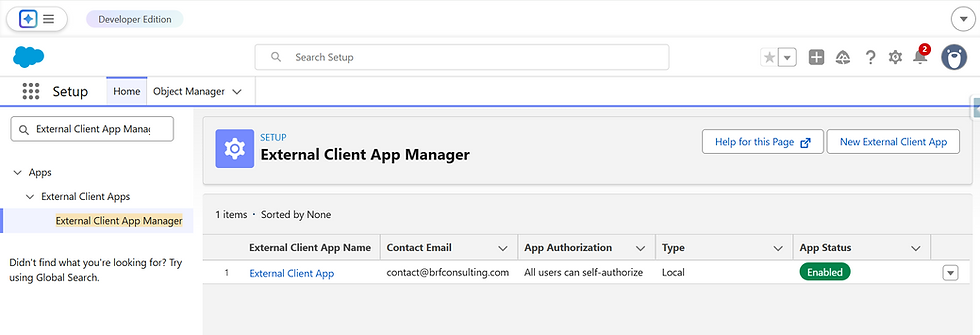
Then, click on New External Client App at the top right corner of this window.

A new window opens, asking for Basic Information. Add only the following:
External Client App Name: Client App Test
Contact Email: Your email
Logo Image URL: (E.g.: https://login.salesforce.com/logos/Salesforce/SalesforcePlatform/logo.png)
API Name: Client_App_Test (automatically added)
Distribution State: Local (Keep it as is)
Icon URL: (E.g.: https://login.salesforce.com/logos/Salesforce/SalesforcePlatform/icon.png)
This is what this portion of the window should look like:

Scroll down, open the API (Enable OAuth Settings), then select the Enable OAuth button.

A new window will appear.
Under App Settings, use the following Callback URL: https://oauth.pstmn.io/v1/callback
On the OAuth Scopes list, select the following available options and click on the arrow to add them to the Selected OAuth Scopes box to the right:
Full access (full)
Manager user data via APIs (api)
Access Unique user identifiers (openid)
NOTE: These scopes are needed to monitor results and ensure you don't encounter permission issues during the API tests in Postman.

Scroll to Flow Enablement, select the option Enable Client Credentials Flow.

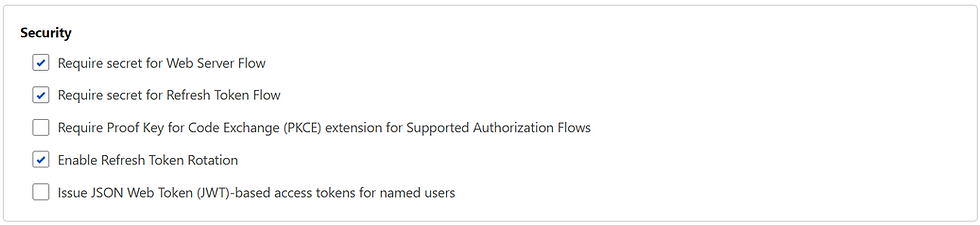
Scroll down to Security: first deselect the option Require Proof Key for Code Exchange (PKCE) extension for Supported Authorization Flows, and select Enable Refresh Token Rotation.
This is what the App Security settings will look like:
Then, click on the Create button.
This will redirect you to the Client App Test page.
Here, go to Policies and select the Edit button in the top-right corner.

Scroll down and open the OAuth Policies section. Select Enable Client Credentials Flow.

In this page, under *Run As (username), enter or paste the Salesforce username you want the application to run under.
NOTE: For this demonstration, Elijah used his own Salesforce account username. This is what the window should look like:

Finally, click the Save button.
STEP 2: Retrieve the App credentials
You’ll be redirected to the Client App Test page. Select Settings, then OAuth Settings section. Under the App Settings, click Consumer Key and Secret.
NOTE: These credentials will be used inside Postman to make Salesforce API requests.

After selecting the button Customer Key and Secret, Salesforce will request a Verification code that will be sent to the email of the User you're logged in as:
Type the Verification code from your email, and select Verify.

Now, you will be able to see the App Credentials:

Step 3: Make requests in Postman
Once you have retrieved the Consumer Key and Consumer Secret, get your domain URL in Salesforce.
If you don't know your domain, go to Setup, type My Domain under the Quick Search box, and click on My Domain in the drop-down menu.
Your domain will be written under Current My Domain URL, as in the image below:

Once you have your Salesforce domain, create a POST request in Postman and type the following endpoint:
https://{YOUR_DOMAIN_URL}/services/oauth2/token In the body of your request, insert the following keys and values:
{
	"grant_type": "client_credentials"
	"client_id": "YOUR_COSTUMER_KEY"
	"client_secret": "YOUR_COSTUMER_SECRET"
}
That step will make your request look like this in Postman:

Click the Send button in the top-right corner of the window. This will generate the Access Token that you will need to use the Salesforce API, as shown in this image:

Now, you can use the credentials and the Access Token to retrieve, create, update, or delete data from any standard or custom objects inside Salesforce, just as the Connected Apps, but with better filters and a very clear distinction between users' credentials and integration credentials.
Conclusion
Replacing Connected Apps with External Client Apps may seem like a minor change in Salesforce.
In reality, this strategic move was driven by the need to improve security for external integrations in Salesforce, including separating user and app authentication, which the new ECAs successfully implemented.
By following these three updated steps for Client Credentials, you'll improve Salesforce security and make its maintenance easier by migrating your current Connect Apps and creating new API connections inside the platform in the future.
*An outdated version of this article was first published on BRF’s news page on February 21, 2025.
About the author: Felipe Elijah is a Salesforce Engineer at BRF Consulting.
Anna Lopes is the Communications Associate for BRF Consulting.
BRF Consulting is a Salesforce ISV partner specializing in Salesforce Agent Force, Artificial Intelligence, Data Engineering, and Software Development, assisting businesses to scale and become more efficient. For more information about our services, email us at contact@brfconsulting.com. |


Comments